


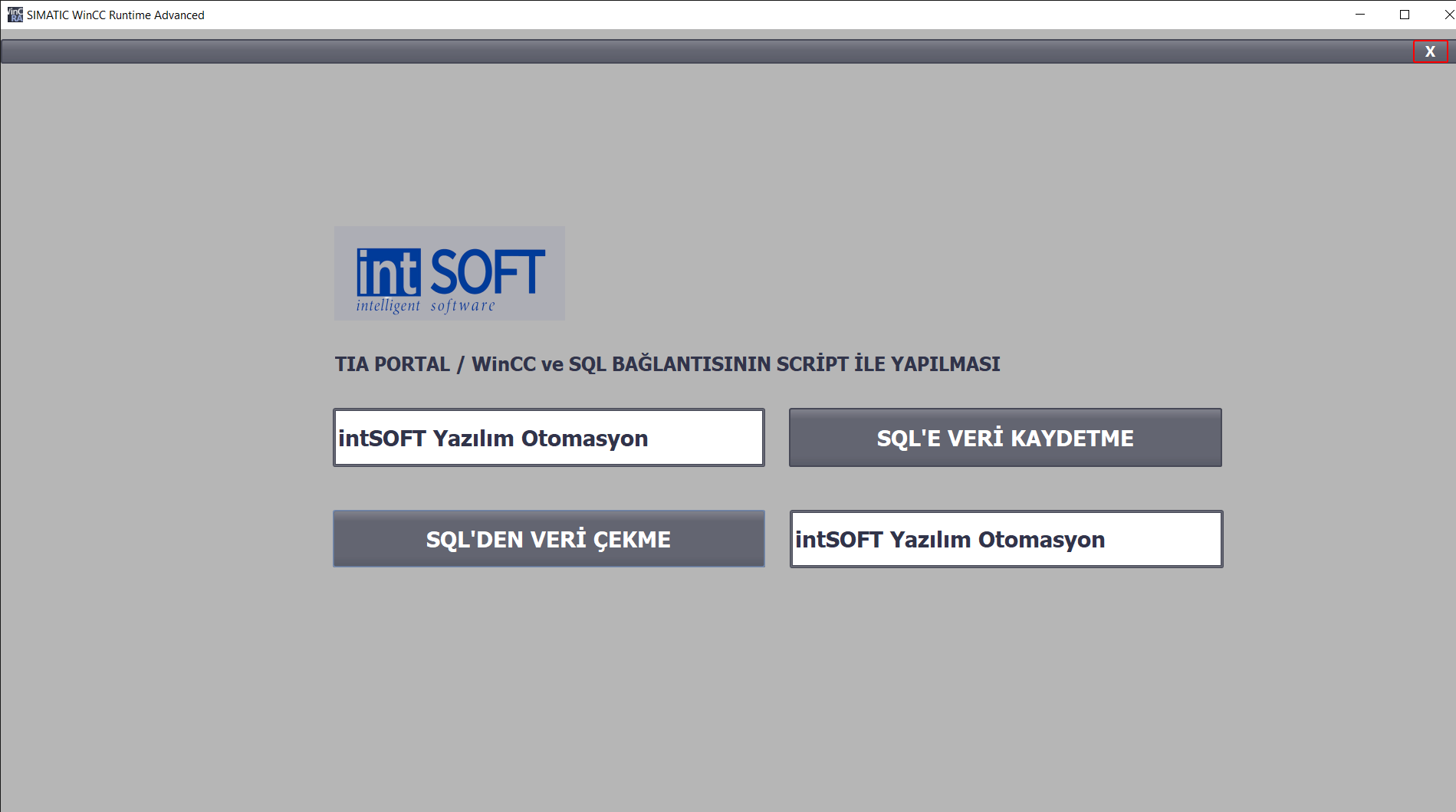
SIEMENS TIA PORTAL / WINCC ADVANCED and PROVIDING THE SQL CONNECTION WITH DSN
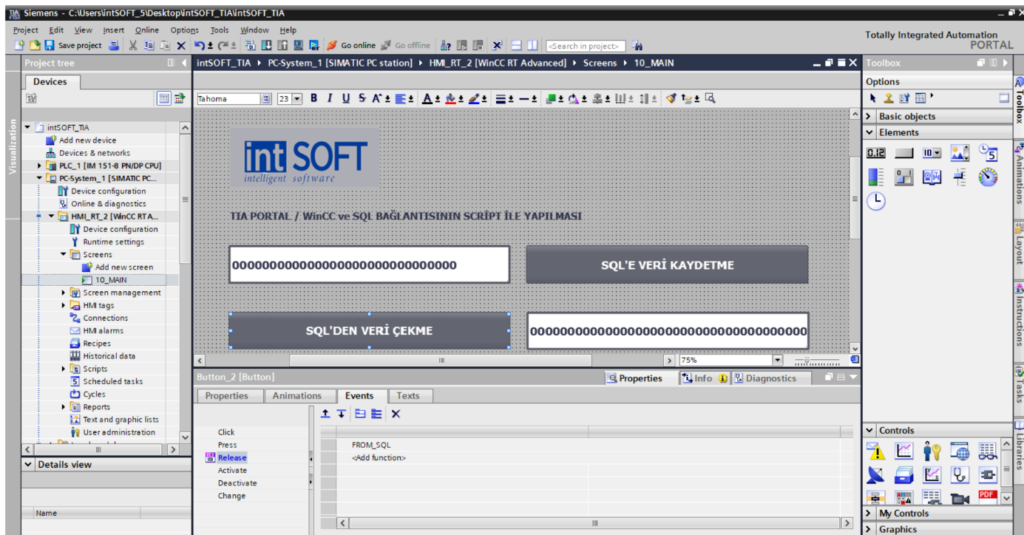
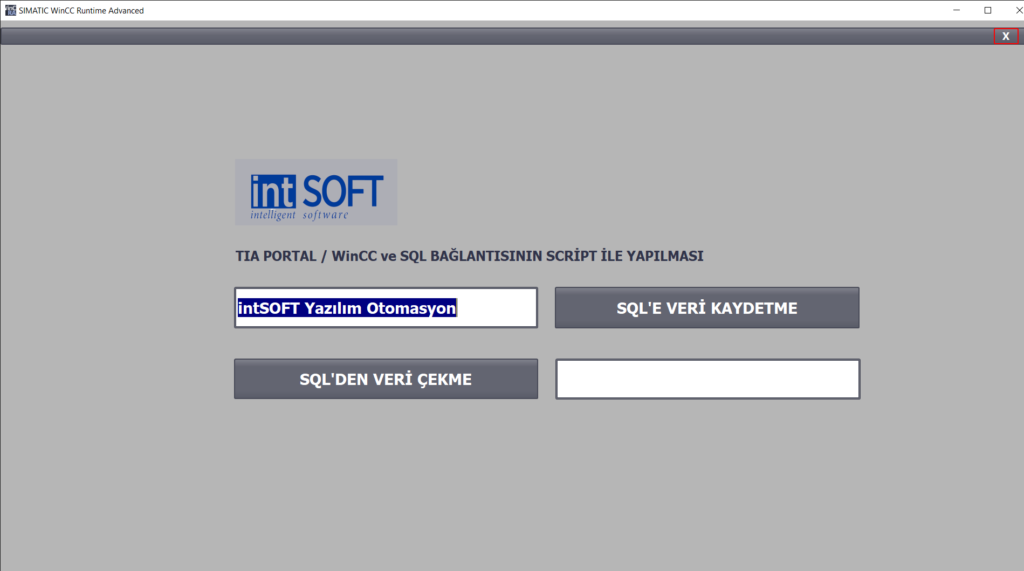
Our objects on our screen:
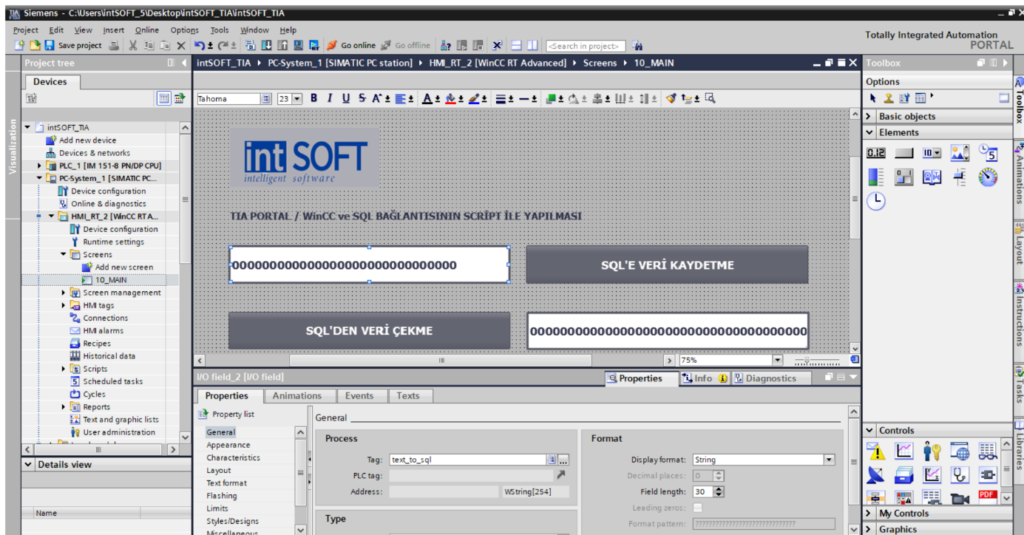
We throw the text_to_sql script into the first I/O field and set the display format as string.
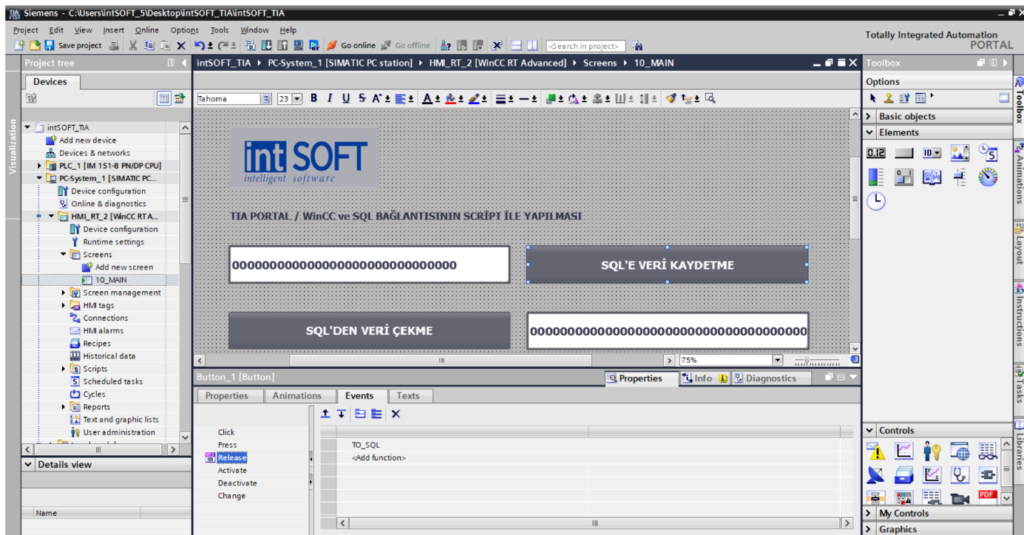
SWe assign the TO_SQL script to the Release event of the button called saving data to SQL.
We throw the FROM_SQL script into the Release event of the button called pulling data from SQL.
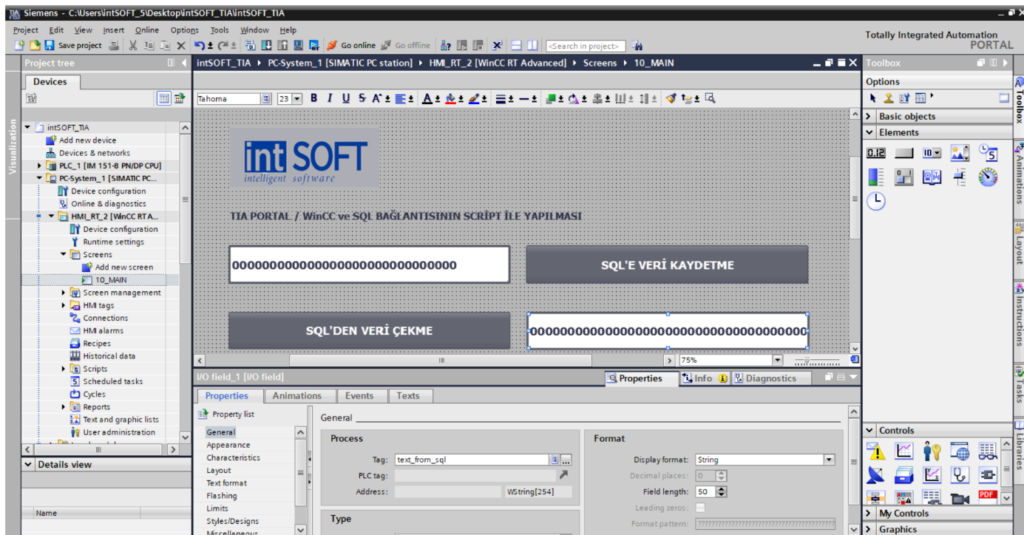
In the second I/O Field, we throw the text_from_sql script and set the display format as string.
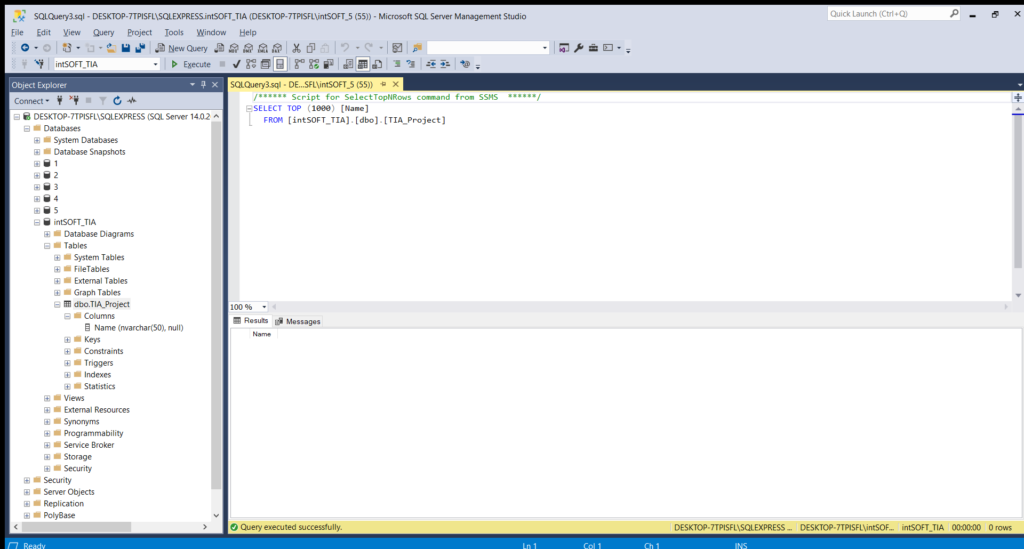
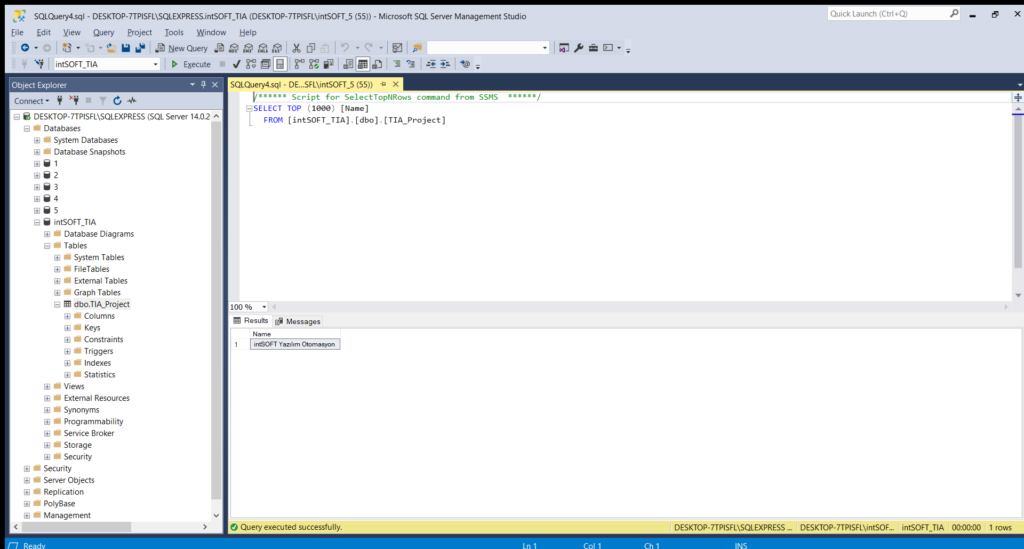
In SQL Server, we create a database. We created a database called intSOFT_TIA. In intSOFT_TIA, we added a table named TIA_Project and a column named Name. In our database, we see that there is no recorded data at the first stage.
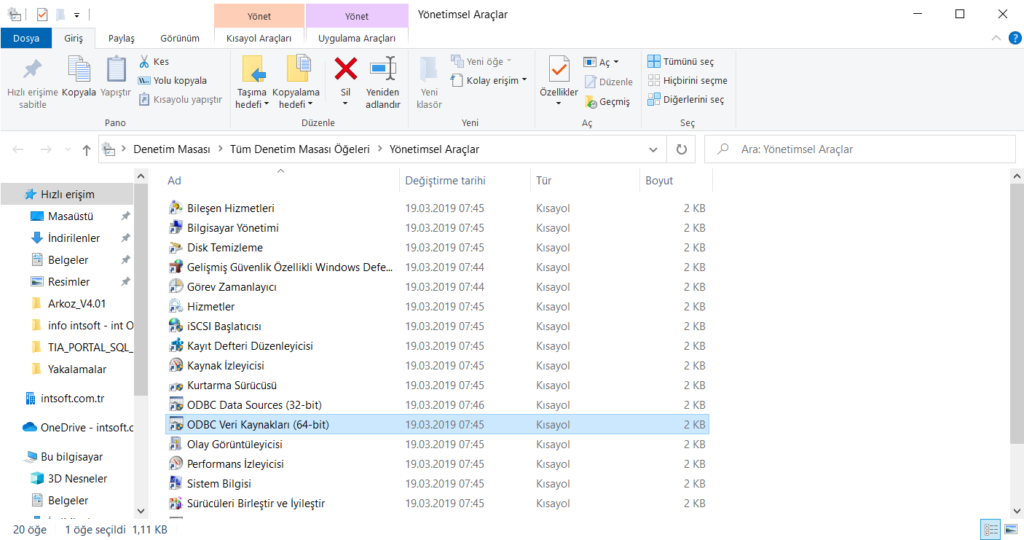
We make the SQL connection through the ODBC Administration Tool. To do this, we entered ODBC Data Sources from the Windows Administrative Tools and added a DSN named intSOFT_TIA. The reason we use ODBC DSN is that it makes it possible to connect to different databases (MySQL, Oracle, MSSQL etc.) with the same standard. It acts as a bridge between databases and applications.
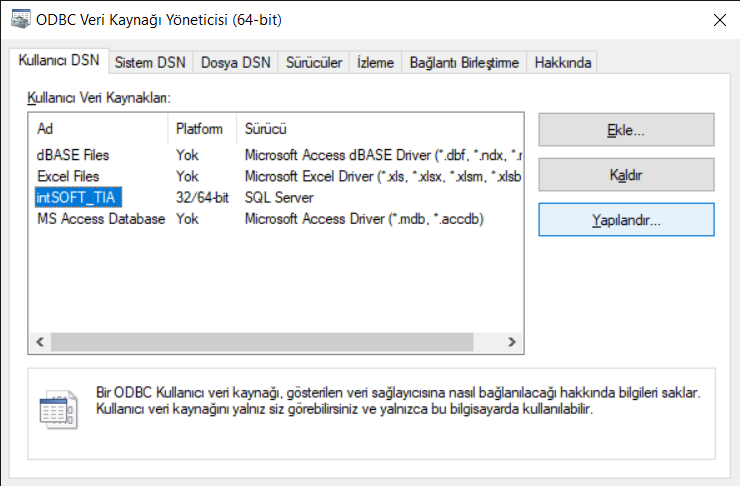
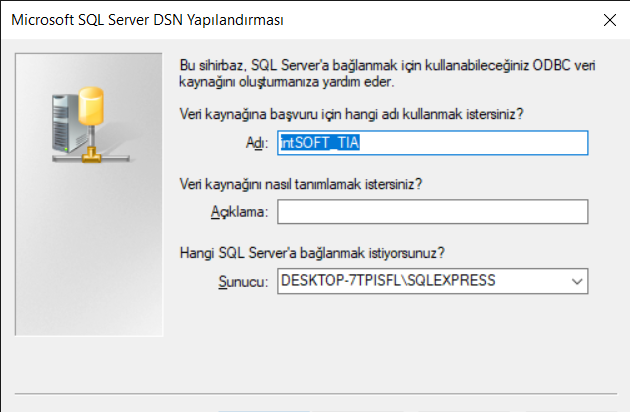
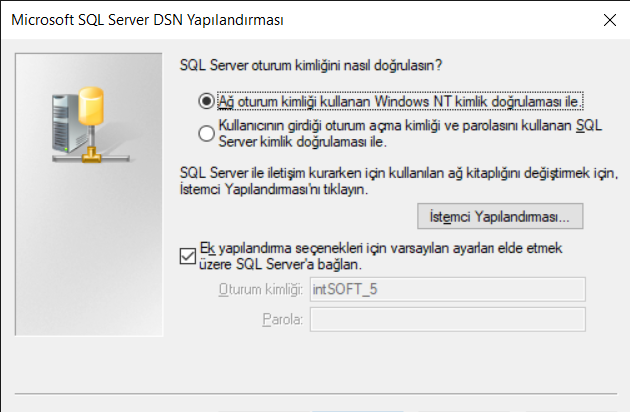
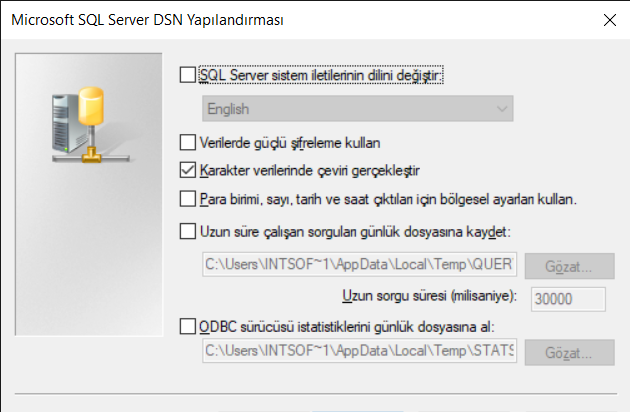
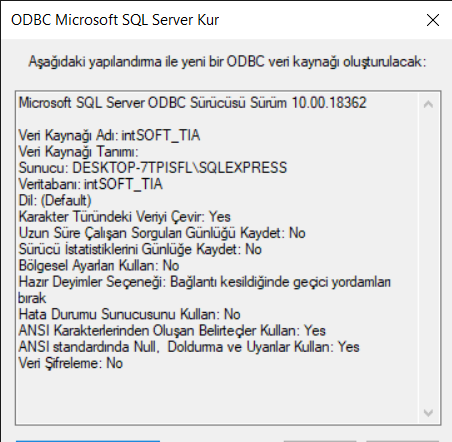
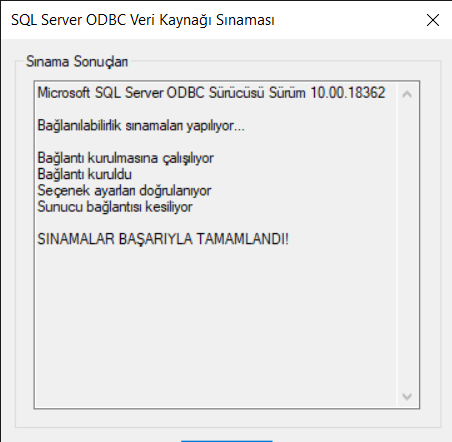
In this way, when we test our SQL connection, we generally ensure that the connection works correctly with the ‘tests completed successfully’ notification.
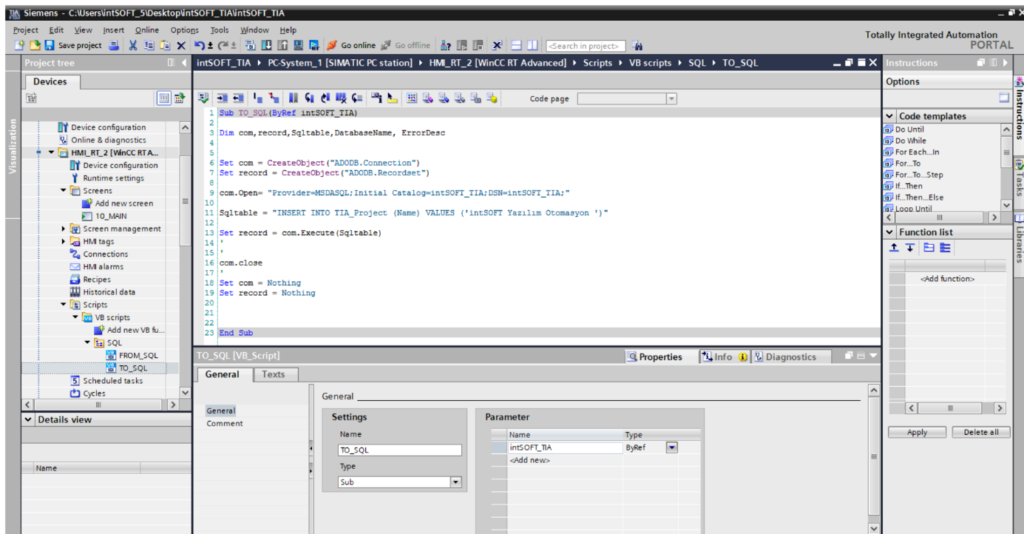
Then, from the TO SQL script, we first connect to the DSN and use the INSERT command to save the text we wrote in the database to our first I / O File.
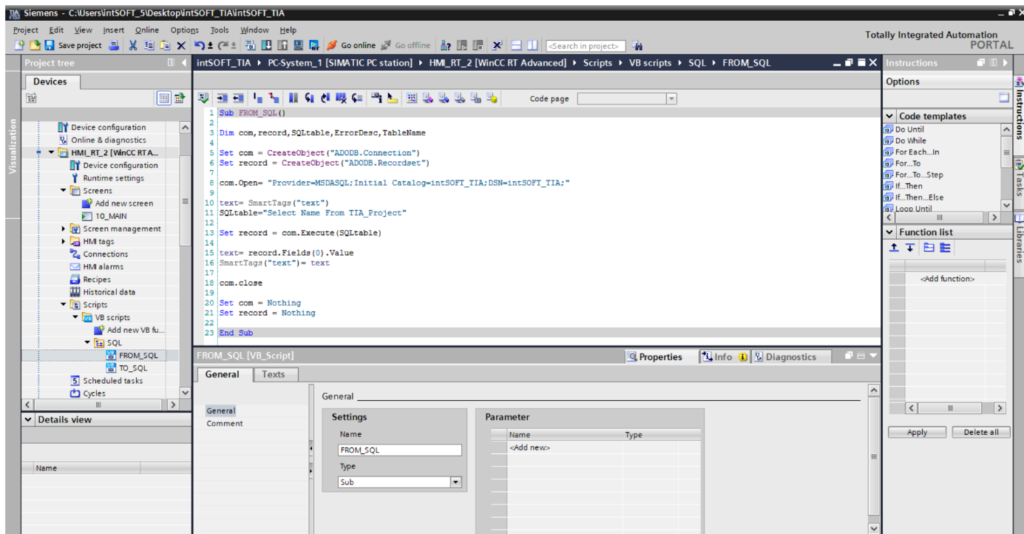
From the FROM_SQL script, we pull the data saved in TIA_Project and throw it into the text tag, so that we can read our saved text from the second I/O Field.
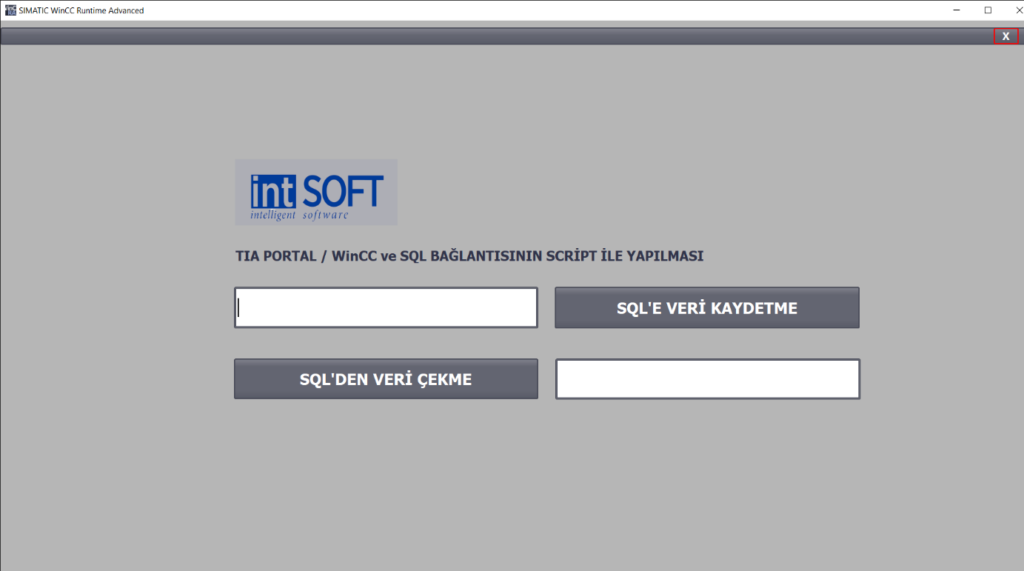
When we run the screen and click the add data button to SQL, the data is saved to the database.
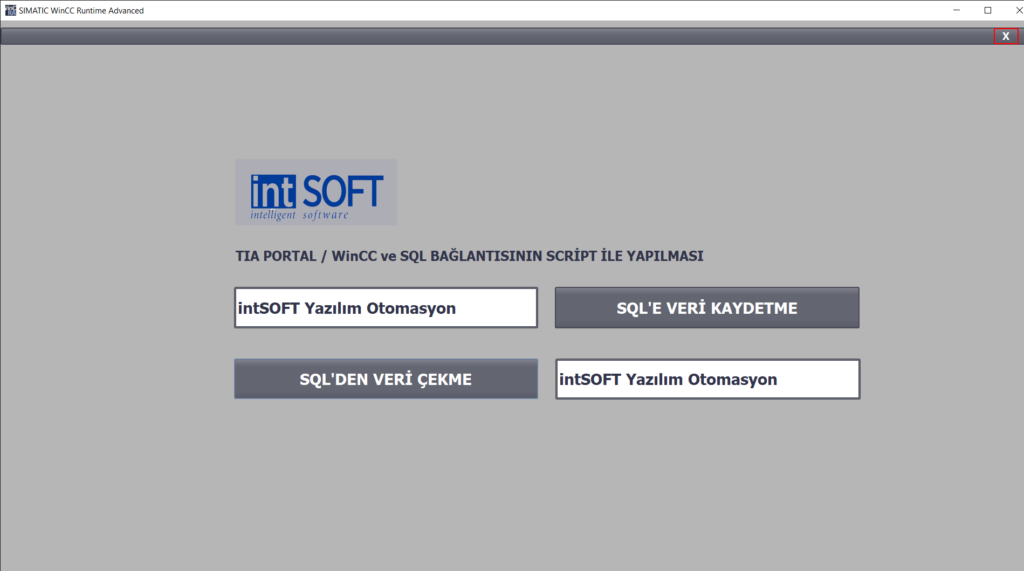
We can read our data from the Second I/O Field with the pull data button from SQL.
.